Supports Popular Formats
Work with MP4, MKV, MOV, AVI, WEBM, M4V, DAV, FLV, WMV, MPEG, TS, MTS, M2TS, VOB, and other commonly used video formats.

Video Compressor is a simple Windows desktop app for reducing video file sizes without making the process complicated. It supports popular formats such as MP4, MKV, MOV, AVI, WEBM, M4V, DAV, 3GP, FLV, WMV, MPEG, TS, MTS, M2TS, VOB, and more.
Download Video Compressor for Windows
sha256:751ae26004959fa2bb8a8cc180beb9531158a527d88ac62371762b04e049dfc7
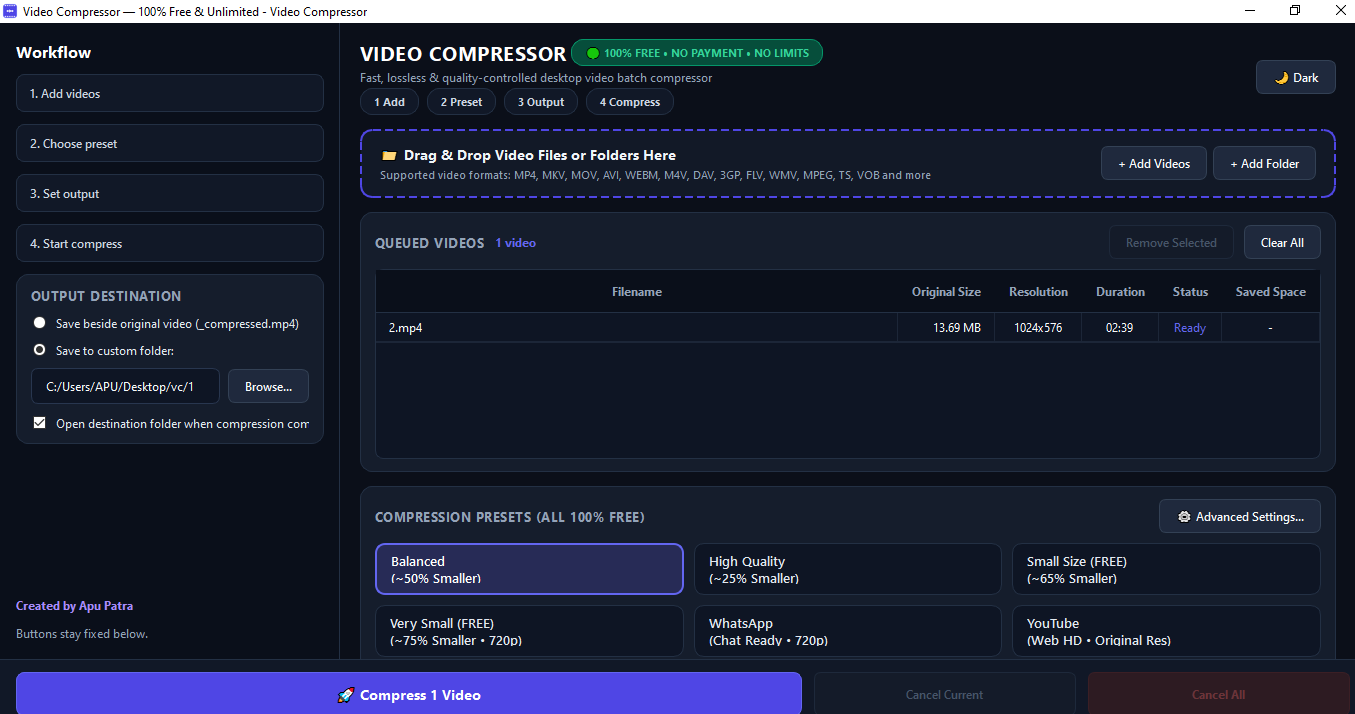
The app is designed for everyday users who want a practical way to compress videos on their own computer. You can add one video or process several files together, choose the output location, and monitor the compression progress from the same window.
Work with MP4, MKV, MOV, AVI, WEBM, M4V, DAV, FLV, WMV, MPEG, TS, MTS, M2TS, VOB, and other commonly used video formats.
Add multiple videos or select a complete folder instead of processing every file separately.
Select a suitable preset or adjust video quality, resolution, frame rate, audio, and other compression options.
See the current file status, overall progress, estimated time, file sizes, and storage savings while the task is running.
Your videos are processed on your computer. The app does not require uploading personal video files to an online service.
Save compressed files beside the original video or choose a separate output folder. Existing files are protected from accidental overwriting.
Yes. This desktop version is available as a free video compression tool for Windows. Download availability and licensing details are provided with the download package.
The app supports MP4, MKV, MOV, AVI, WEBM, M4V, DAV, 3GP, FLV, WMV, MPEG, TS, MTS, M2TS, VOB, and several other formats supported by its FFmpeg-based processing engine.
Yes. You can add multiple files or select a folder and process the videos in a batch queue.
No. Video processing takes place locally on your computer, so you do not need to upload your files to a website or cloud service.
DAV files are included in the supported format list. However, some CCTV systems use proprietary codecs or damaged file structures. If a particular DAV file cannot be read, try exporting it from the CCTV software to MP4 first.
No. The distributed Windows package includes the required application components. Keep the complete downloaded application folder together when running the portable version.
Video Compressor uses the trusted FFmpeg media framework for handling supported video formats. You can learn more about the technology from the official FFmpeg website. For Windows compatibility information, visit the official Microsoft Windows website.
You may also find these Windows desktop tools useful for file management, PDF work, data conversion, and document processing.
Last updated: 2026